Let your agent do it
Let your agent do it
To run this guide from your terminal or your coding agent, run The steps below are what the agent does, in the open.
npx checkly init in your project first. It installs the Checkly CLI and Checkly Skills for your agent. Then paste the prompt below into Claude Code, Cursor, Codex, or any agent that supports skills. It builds the same setup as this guide, proves it with npx checkly test --record, and stops for your confirmation before npx checkly deploy.Prompt
Step 1: Write down what must be on the page
An uptime monitor tells you the home page answered. It can’t tell you the page is selling. If a deploy drops your best seller from the top spot, duplicates the offer banner, or renders an error message inside a healthy 200 response, customers notice long before a status code does. Write each of those expectations as an assertion:tests/home-content.spec.ts
Step 2: Match the keyword where it belongs
The simplest keyword check ispage.getByText('keyword'). It works until the keyword appears more than once. On the Danube shop, every book costs $9.95:
Terminal
.first() makes the error go away and the check useless: it passes as long as any book costs $9.95. The test in Step 1 answers a sharper question instead. Each choice maps to a way content breaks:
- Position matters: the best seller is located as the first
.previewcard, andtoHaveTextrequires its title to be exactly “Haben oder haben”. A reorder fails the check, and so does a truncated or renamed title. - Context matters: the price is looked up inside the best seller’s card, so it checks that book’s price, not any price.
- Duplicates matter:
toHaveCount(1)fails if the offer banner disappears and also if a layout bug renders it twice. - Wording varies: the call to action is matched by role and a case-insensitive regular expression, so marketing can rename “Sign up” to “Create an account” without breaking the monitor. Regular expressions in Playwright are case-sensitive unless you add the
iflag. - Absence matters:
toHaveCount(0)turns error copy into a failure, even when the page itself loads fine.
Step 3: Run it on a schedule
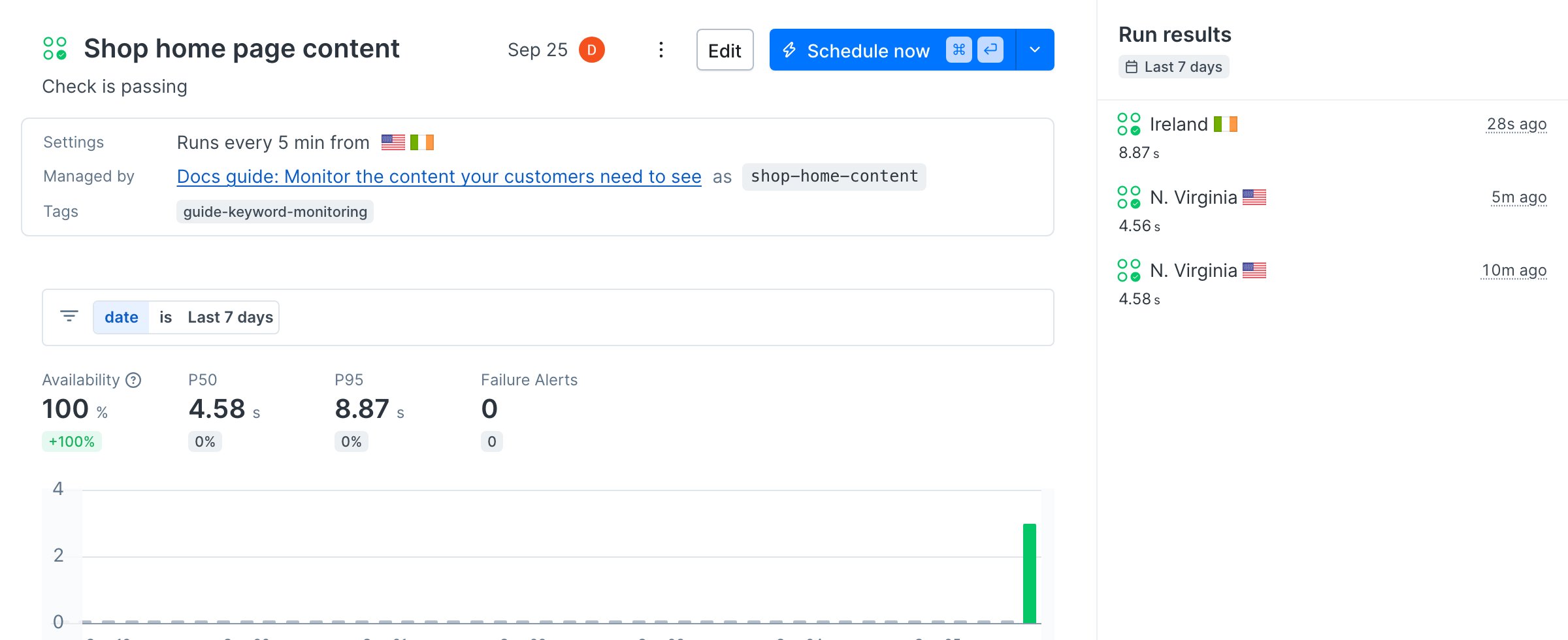
Run the test as a Playwright Check Suite, or as a Browser Check if you prefer one file per check. Both use the same spec file.playwright.config.ts, which keeps a trace and a screenshot of every failure:
playwright.config.ts
Terminal
Terminal
Terminal
Verify it works
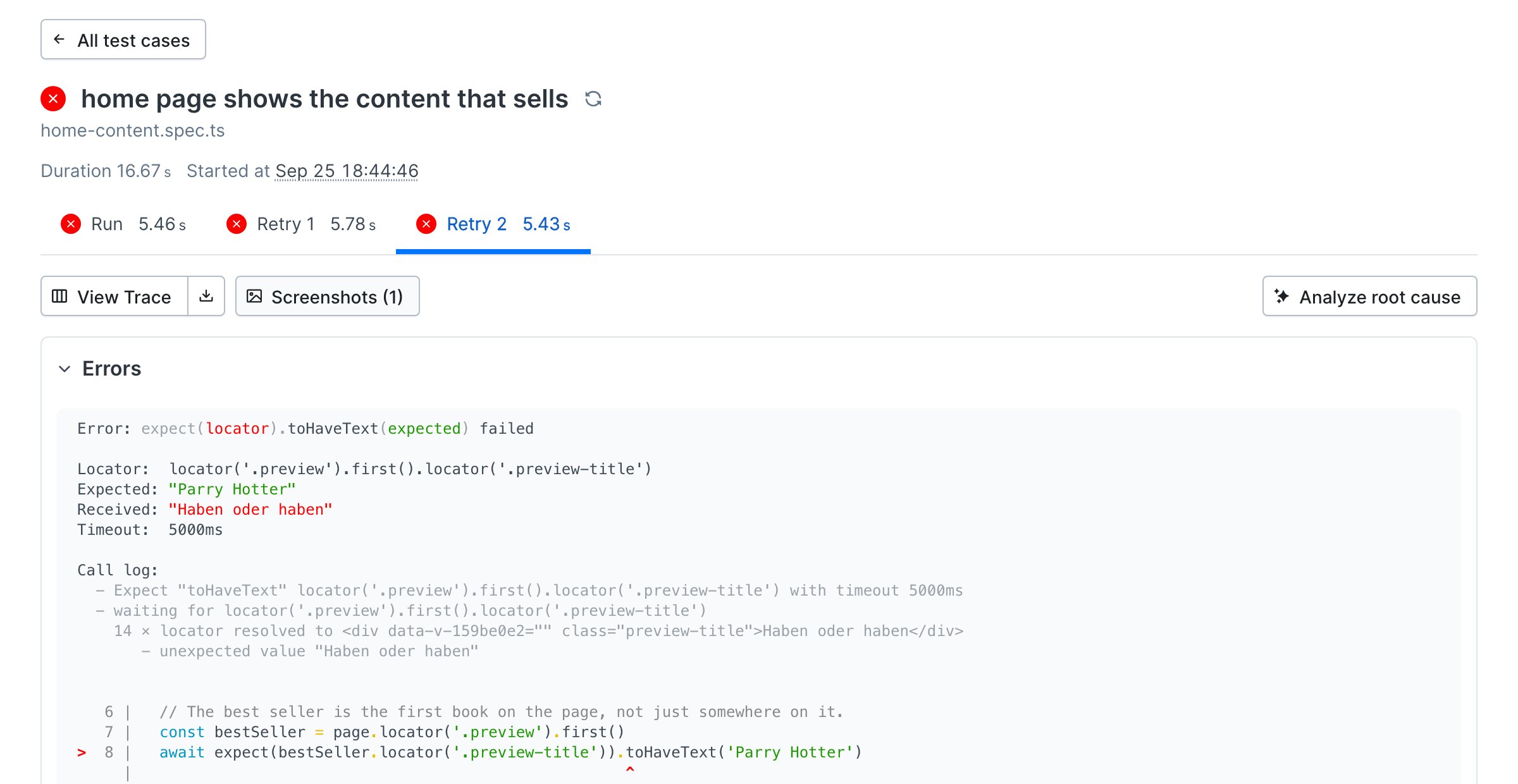
Simulate the shop reordering its best sellers. Intests/home-content.spec.ts, change the expected title from 'Haben oder haben' to 'Parry Hotter', the second book on the page, and run npx checkly test --record again. Both checks fail. The result names the assertion, the text it expected, and the text it found: